For a while, I was the only person using Branchline. That is comfortable: everything works the way I use it, because I am the one who tested it.
Then someone else started using it, and before long a commit failed with a message every developer knows and nobody likes: “command not found”. This post is about how we found out why, and about the two releases that came out of it, 0.2.0 and 0.2.1.
A second pair of hands
From version 0.2.0 on, I am no longer Branchline’s only tester. Someone who is interested in the app started using it too, and we work together on a repository hosted on Bitbucket. That alone was a good test, because it meant Branchline was now talking to another hosting platform than the one I use myself.
In that repository we use Husky. I normally work in Rider, my code editor, which handles that just fine. My tester does not have Rider, so he uses Branchline for his Git work. And that is where it went wrong.
The hook that could not find its tools
Some background first. Git can run small scripts at certain moments, for example right before a commit is made. These are called hooks. Husky is a popular way to set them up, and teams use it to run checks automatically: is the code formatted, do the tests still pass? If a check fails, the commit is stopped.
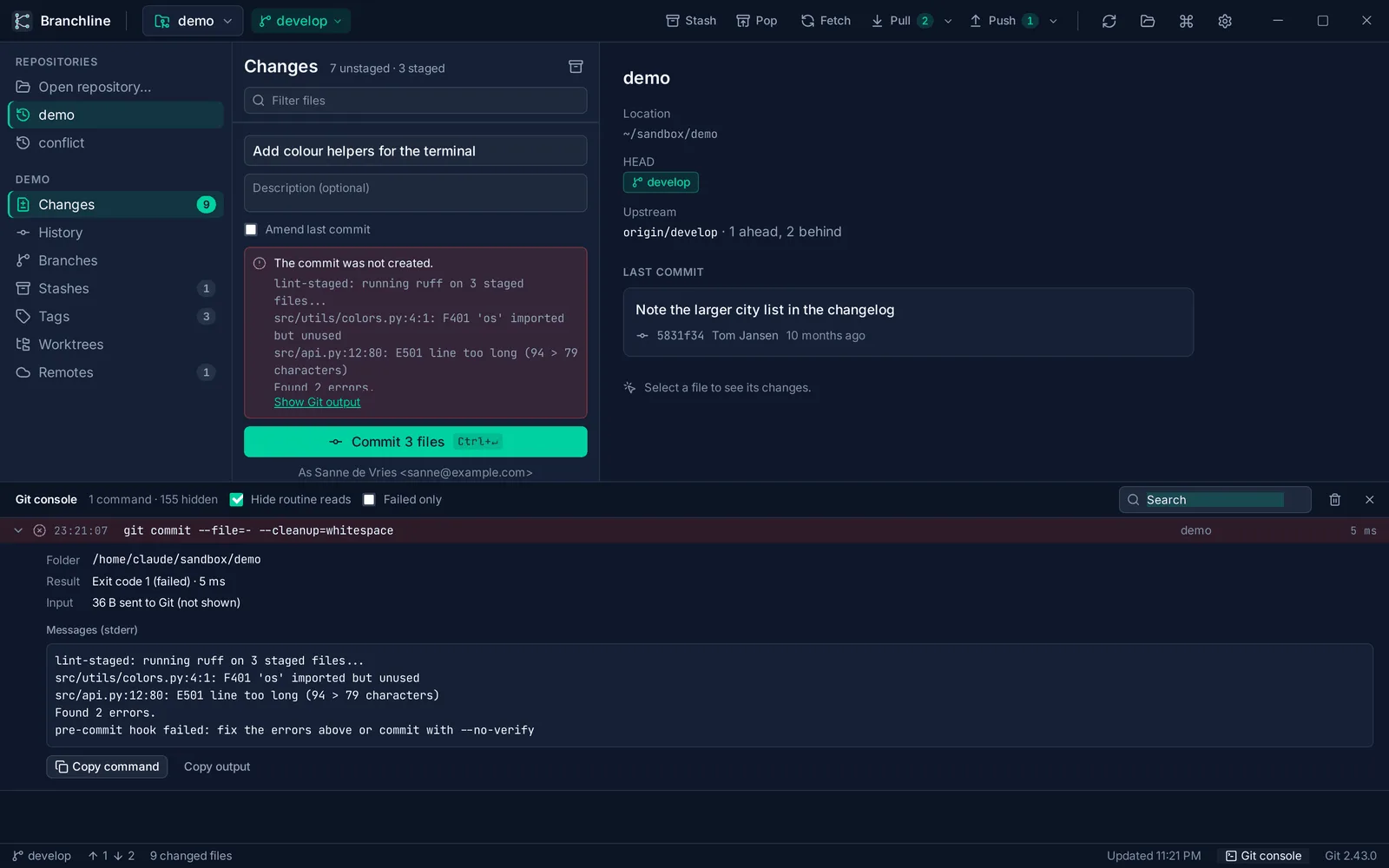
On my tester’s machine, the commit was stopped every time. The hook said a command could not be found. And here was the real problem: we had no way of seeing what exactly went wrong. Branchline just said the commit failed.
So we split up. He used the Git tool he had used before to get some output out of the hook. In the meantime, I started building a way to see that output inside Branchline itself.
Seeing what Git sees
That became the Git console, and the idea for it was his. Press Ctrl+J (or ⌘J on a Mac), and Branchline shows every Git command it runs, with its output. When a commit or a push fails, there is a link that takes you straight to the reason.
When my tester got the output, we quickly saw it was not the hook at all. It was the PATH.
The PATH is the list of folders your computer searches when a program asks for a tool by name. When you open a terminal, your shell builds a long PATH, including the places where tools like Node, Homebrew or nvm live. But an app started from the Dock or Finder on a Mac does not get that long list. Imagine sending someone to the store with a shopping list where half the items are missing: they come back and say “not found”, even though the shop has everything.
The hook asked for a tool, the shortened list did not include its folder, so: command not found. The fix rolled out shortly after: Branchline now uses the PATH of your login shell for Git and its hooks. Hooks find the same tools as in your terminal, however you start the app. That fix, the console and sorting branches by name or last commit became version 0.2.0.
The console stays, by the way. It makes debugging easier for us, and it makes it much easier for anyone to report a failed command: just copy what the console says.
Credit where credit is due
Version 0.2.1 came a day later and is about a different kind of visibility.
Branchline is built on open source packages that other people worked hard on. 439 of them, to be exact. For me, open source means giving credit where credit is due: if I use someone’s work, they deserve to be named. Some licenses also require it. So Branchline now has an About screen in its settings that lists every package with its license and the full license text, ten at a time with Show more and Show all.
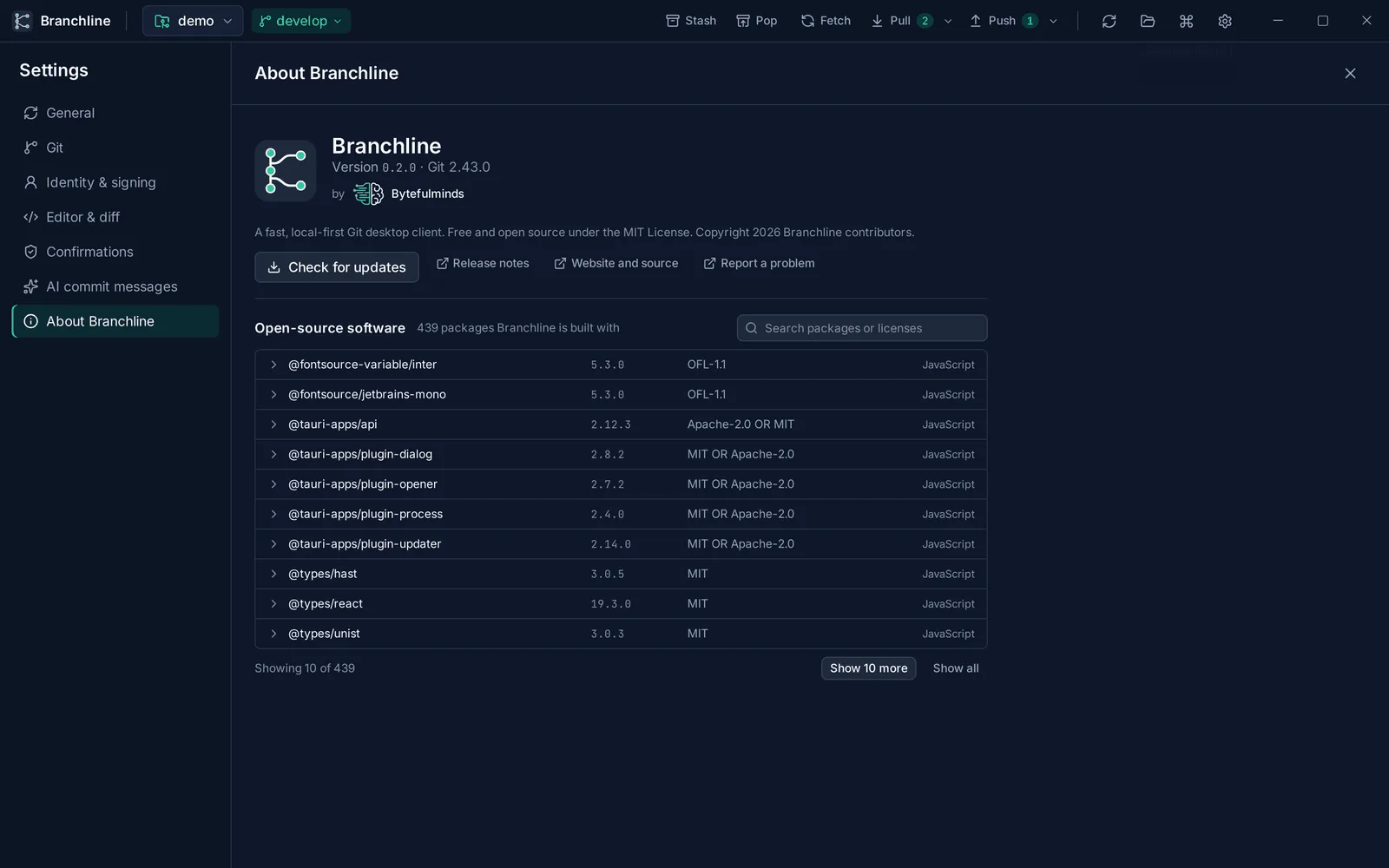
The About screen also fixed two practical problems. Until then, there was no way to see which version of Branchline you were running, which is not great when you are trying to debug something together. And updates: if you have the update check turned on, Branchline shows a popup after it starts, and that popup disappears after a while, by design. If you missed it, the only way back was to close Branchline and open it again, and at that point you might as well download the new version from GitLab yourself. Now the About screen has its own Check for updates button, plus links to the releases and the repository.
A README for humans
The last change in 0.2.1 was not in the app at all, but in its README. That is the first page you see when you open a project on GitLab, GitHub or Bitbucket, and mine had been annoying me for a while: long texts, lots of technical details.
I design tools with the idea that most users are not programmers. They do not care about the technology behind a product. They want to see what it does. So the README is now a tour of Branchline with screenshots. Everything technical, like keyboard shortcuts, settings, security and building from source, moved to a separate manual. If you are interested, you will find it. If not, you do not have to wade through it.
What I learned
- Let someone else use it. A second user found a bug I would never have hit myself, because my own setup did not have it.
- Make the invisible visible. “Commit failed” helps nobody. Showing what Git actually says turned a mystery into a quick fix.
- Give credit, and show your version number. Small things, but they make a project feel trustworthy, and they make helping each other a lot easier.
Next up for Branchline: the more advanced features, and signing the Windows and macOS builds so your computer stops warning you about them.